
Dashboard.
To make insights actionable you need to conduct research quickly, analyse it effectively and share it effortlessly. Our smart platform makes survey design, deployment, analysis and sharing simple.
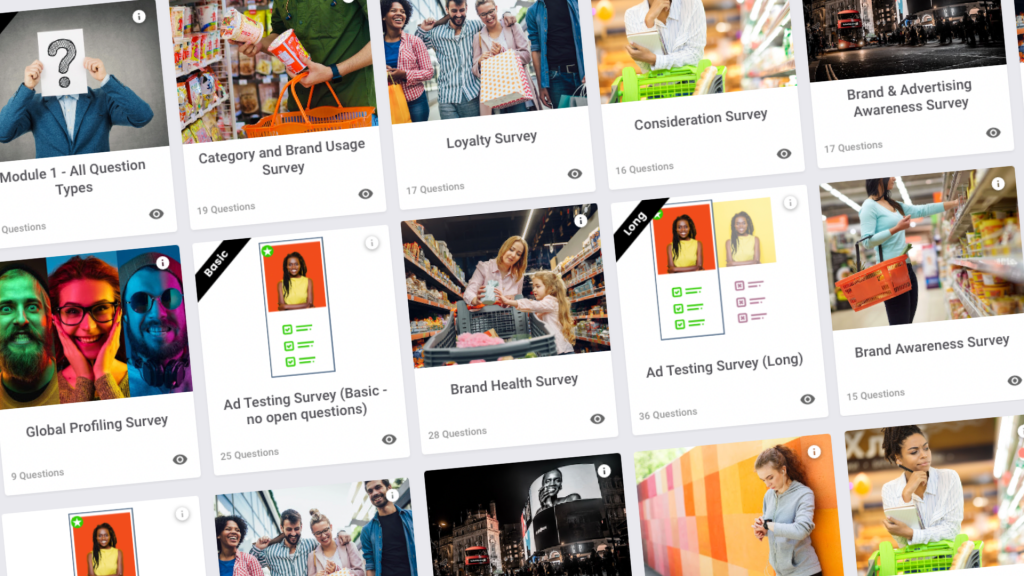
Kits.
Pre-built question sets for specific uses such as Brand Tracking or Concept Testing that speed up survey build whilst ensuring quality.
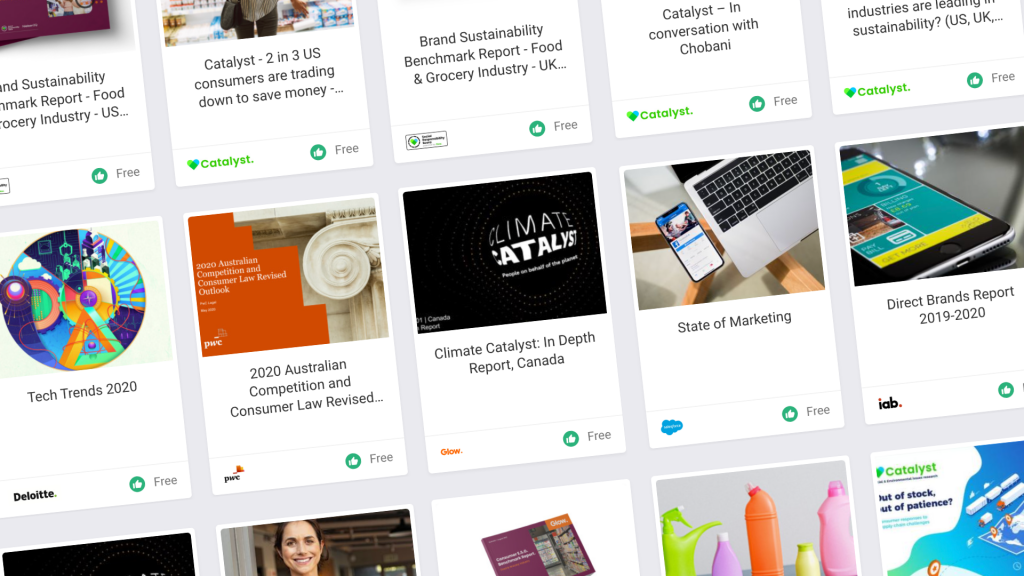
Reports.
Get up to speed with quality insights and bite-sized reports across a variety of topics from a range of trustworthy publishers.
FAQs.
Hidden
1. How do I create a project?
To create a project head to your Dashboard and click ‘+ New Project’.
Where can I find this feature: Dashboard
2. How do I create a survey?
To create a survey you must have created a project first. Go to your project and select ‘+ New Survey’.
Where can I find this feature: Your project
3. How do I create a question?
To create a question, in your survey select the ‘+Add Question/Section’ button then choose your question type.
Where can I find this feature: Survey editor
4. How do I preview a survey?
Head to your survey and click ‘preview’ up the top to view your survey as respondents would view it.
Where can I find this feature: Survey editor
5. How do I make a question optional or compulsory?
Questions can be toggled from optional to compulsory in survey editor for each question, forcing respondents to answer or letting respondents skip if they want to.
Where can I find this feature: Survey editor – Add question pop-up
6. How can I show question numbers?
Question numbers can be added before each question or you can opt to have no question numbers.
Where can I find this feature: Survey editor – survey settings
7. What are ‘profile’ questions?
Profile questions range from a number of different attributes about a respondent. Glow has a unique way of capturing 3 parts of a person’s profile: age, gender & location
Where can I find this feature: Survey editor – survey settings
8. What is the ‘Question Library’?
The Question library is large set of Glow approved research question templates to be added into your survey. They can be edited and tailored for your specific product/service/business/research focus.
Where can I find this feature: Survey editor – Add question pop-up
9. What is ‘Randomisation’?
Randomisation helps to remove certain response biases, like respondents picking the top response or not reading all responses. There are 3 options to randomise: Shuffle, Rotate, and Flip
Where can I find this feature: Survey editor – Add question pop-up
10. What is ‘borrow from’?
Borrow from allows you to bring in a respondents choices from a previous question, or choices they didn’t select. It functions like ‘Of the choices you selected/didn’t select in QX which would you choose in insert new circumstance?’
Where can I find this feature: Survey editor – Add question pop-up
11. What is ‘copy from’?
Copy from allows you to copy in the same choice list from a previous question while you are in survey builder to save you writing them all again.
Where can I find this feature: Survey editor – Add question pop-up
12. What is ‘insert answer from a previous question’?
Insert answer from previous question allows you to use a respondents answer in a following question.
e.g Q1 Which store did you visist today? answer: ‘Melbourne’
Q2 What did you like most about your experience in the Melbourne store?
Where can I find this feature: Survey editor – survey settings
Find out about our different question types and how to create them.
1. Choice question
A choice question lets respondents choose one or many answers as you decide.
Where can I find this feature: Survey editor – add question pop-up
2. Image question
An image question allows respondents to upload an image for you to collect.
Where can I find this feature: Survey editor – add question pop-up
3. Matrix question
A matrix question lets respondents answer multiple statements or items on the same scale; like agree-disagree on statements.
Where can I find this feature: Survey editor – add question pop-up
4. Mood question
A mood question allows respondents to answer with an emoji on a 6-point scale to show their feeling.
Where can I find this feature: Survey editor – add question pop-up
5. NPS question
The Net Promoter Score (NPS) question is an industry-standard measure of customer loyalty. It tells you how likely your customers are to recommend your product.
NOTE: This question follows a strict methodology, and for maximum effectiveness, it should be used that way. For that reason, we don’t allow the scale to be edited. However, if you would like to ask a DIFFERENT question, you can use the scale question type for a similar function.
Where can I find this feature: Survey editor – add question pop-up
6. Numeric scale
A numeric scale question has multiple uses, like asking respondents to answer on a scale of weight, currency, time or numeric functions.
Where can I find this feature: Survey editor – add question pop-up
7. Rank question
A rank question forces a respondent to make choices with an order of preference. Different from a choice question because 1st rank and 2nd rank are treated differently.
Where can I find this feature: Survey editor – add question pop-up
8. Rating question
A rating question lets respondents choose a star rating on a 5-point scale.
Where can I find this feature: Survey editor – add question pop-up
9. Scale question
A scale question lets respondents answer along a scale between 2 constructs (likely-unlikely, agree-disagree, often-never, etc.)
Where can I find this feature: Survey editor – add question pop-up
10. Text section
A text question allows respondents to write free text answers in response to a question or prompt.
Where can I find this feature: Survey editor – add question pop-up
11. Location question
The Location question allows respondents to input their location, i.e. their town/ neighbourhood/ suburb, or city into the provided field. The only invalid response is inputting a country, as the country will automatically be detected based on their input and location. men completing your survey!
Where can I find this feature: Survey editor – add question pop-up
12. Hidden variables
Hidden Variables are used to auto-select variables for respondents if they meet the condition in your display variable logic. Because hidden variables are auto-selected, respondents will never see these variables when answering your survey; hence, hidden variables! But they are not hidden from you, as hidden variables will appear as Charts in your Analysis.
Where can I find this feature: Survey editor – add question pop-up
1. How do I collect responses?
Responses are your data. Glow’s audience channels give you the chance to choose a number of options for collecting responses.
Where can I find this feature: Survey – Capture
2. How do I make a shareable link to my survey?
A link to your survey lets you send your survey to your email database, social media groups, etc. Just remember to analyze your data with this in mind.
Where can I find this feature: Survey – Capture – Audience Channel
3. How do I use a consumer panel?
An online consumer panel is a quality assured group of respondents that fully represent your chosen respondent type. If, for example, you want to get a representative look at all Australian drivers, using a consumer panel would be the most reliable way to capture this.
Where can I find this feature: Survey – Capture – Audience Channel
1. How do I analyze my data?
Once you’ve captured responses, you can see the results in your Analyse tab.
The Question Index on your left allows you to quickly navigate to each of your questions.
Where can I find this feature: Survey – Analyse
2. How do I create filters?
Filters are a powerful tool that puts you in control of the data you see. By applying a data filter, you can focus on specific sections of your dataset rather than the entire dataset.
Where can I find this feature: Survey – Analyse
3. How do I delete a response?
Sometimes you might need to delete a response because it was a test response by you or your team; someone has completed your survey, but they haven’t understood the questions; they aren’t the right people to be completing your survey (e.g product sentiment survey completed by someone who has never tried your product). It’s better not to include this in your analysis. Otherwise, it could impact the insights you try to draw from your data.
Where can I find this feature: Survey – Analyse
Need more help with the Glow platform?
Find more common questions and support documentation in the Glow Help Center.
Still have question?
Let our experts show you the power of the platform.
Book an intro today.